 Inventar & Prețuri Terminal
Inventarul magazinului, direct cu iPhone-ul
Încărcați lista de mărfuri din programul dumneavoastră, scanați cu camera și trimiteți rezultatul în Excel, Google Drive sau la imprimantă. Funcționează fără internet.
2 săptămâni gratuit, cu toate funcțiile. Apoi 99,99 $ pe an. Anulați oricând.
Cum funcționează
- Exportați catalogul din programul dumneavoastră (1C, Excel, casa de marcat…) ca fișier Excel
.xlsxsau.csv. - Puneți fișierul pe telefon: în Google Drive, iCloud Drive, sau trimiteți-l pe Viber / Telegram / e-mail și salvați-l în Fișiere.
- În aplicație: Catalog › Din fișier și alegeți fișierul. Aplicația recunoaște singură coloanele. Sau Lipește text — copy-paste direct din Excel.
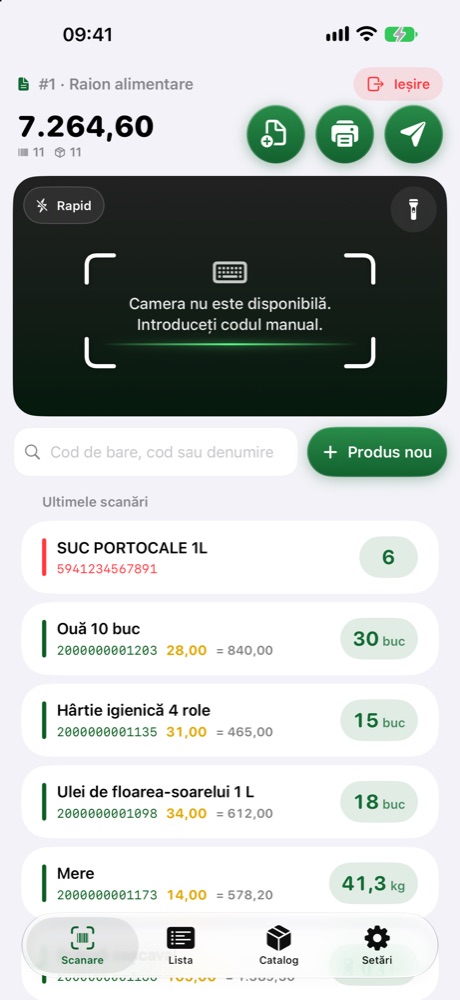
- Scanați mărfurile cu camera. Cântărite, coduri interne, căutare după denumire — toate merg. Mărfurile noi le adăugați cu Produs nou (cod, denumire, cantitate, preț).
- Apăsați Trimite: Excel pe Viber, Telegram, WhatsApp, e-mail sau în Google Drive. Sau tipăriți lista și etichetele de preț.
Ce poate
Ce fișier trebuie
Un tabel simplu: un articol pe rând. Prima linie poate fi antetul (titlurile coloanelor). Ordinea coloanelor nu contează — aplicația le recunoaște după titlu, iar dacă nu, le alegeți dumneavoastră din listă.
| Coloană | Titluri recunoscute (exemple) | |
|---|---|---|
| Denumire | Denumire, Nume, Produs, Наименование, Name, Désignation | obligatoriu* |
| Cod de bare | Cod de bare, Cod bare, EAN, Штрихкод, Barcode, Code-barres | obligatoriu* |
| Preț | Preț, Pret vanzare, Цена, Price, Prix | recomandat |
| Stoc | Stoc, Sold, Cantitate, Остаток, Stock, Qty | pentru diferențe |
| Unitate | UM, Unitate, Ед. изм., Unit, Unité (buc, kg) | opțional |
| Cod intern | Cod intern, Articol, SKU, Код, Артикул | opțional |
| PLU | PLU, Cod cântar, Код весов | pentru cântar |
* E nevoie de cel puțin una din ele: denumire sau cod de bare.
Formate: Excel .xlsx, .csv (separator ; , sau Tab), .txt. Fișierele vechi .xls — salvați-le din Excel ca .xlsx (Fișier › Salvare ca).
Prețuri: 12,50 sau 12.50 — ambele merg. Mai multe coduri pentru aceeași marfă: rânduri separate cu același cod intern, sau în aceeași celulă separate prin virgulă.
Fișiere-exemplu
Descărcați, deschideți în Excel și înlocuiți cu mărfurile dumneavoastră — sau încărcați-le direct în aplicație ca să vedeți cum merge.
Copy-paste
Selectați coloanele în Excel sau Google Sheets, copiați, apoi în aplicație: Catalog › Lipește text. Arată așa:
Cod de bare	Denumire	Pret	Stoc
4840000000017	Apă minerală 0,5 L	6,50	48
4840000000024	Lapte 2,5% 1 L	19,90	24
Din programul dumneavoastră
1C
Deschideți lista de nomenclatură sau raportul de stocuri (ex. „Остатки товаров”), apoi Fișier › Salvare ca › Excel (.xlsx). Lăsați coloanele: denumire, cod de bare, preț, cantitate.
Excel
Lăsați pe prima foaie doar tabelul cu mărfuri (fără rânduri de titlu deasupra antetului), apoi salvați ca .xlsx.
Google Sheets
Fișier › Descărcare › Microsoft Excel (.xlsx). Sau, mai simplu: pe telefon, în aplicația Google Drive, fișierul se vede direct din Inventar & Prețuri Terminal › Catalog › Din fișier.
Casa de marcat / alt program
Orice export în Excel sau CSV cu denumire și cod de bare este bun.
Rezultatul
Butonul Trimite face un fișier Excel cu două foi:
1. Scanări — Cod de bare · Cant. · UM · Denumire · Ora · Preț · Sumă, cu TOTAL jos.
2. Rezultat — pe fiecare marfă: numărat, stoc în program, diferență și sume.
Google Drive: instalați aplicația Google Drive pe iPhone și intrați în cont. Apoi Trimite › Excel: Google Drive / Fișiere și alegeți dosarul.
Inventar complet: porniți comutatorul din fila Listă și în fișier intră și mărfurile nescanate (lipsă).
Prețul
2 săptămâni gratuit, cu toate funcțiile. Apoi 99,99 $ pe an, plătit prin Apple. Dacă anulați în primele 2 săptămâni nu plătiți nimic. Anulare: iPhone › Setări › numele dumneavoastră › Abonamente › Inventar & Prețuri Terminal.
Întrebări
Trebuie internet?
Nu. Catalogul și scanările stau pe telefon. Internetul trebuie doar ca să trimiteți fișierul.
Câte mărfuri poate avea catalogul?
Am testat cu 80 000 de articole — se încarcă în câteva secunde.
Pot scana fără catalog?
Da. Codurile necunoscute apar cu roșu și scrieți denumirea (și prețul) o singură dată — data viitoare sunt recunoscute.
Unde sunt datele mele?
Doar pe iPhone-ul dumneavoastră. Nu avem server și nu primim nimic. Vedeți confidențialitatea.
Contact
Scrieți-ne: ghenapg@gmail.com
Инвентаризация магазина прямо на iPhone
Загрузите список товаров из вашей программы, сканируйте камерой и отправляйте результат в Excel, Google Drive или на печать. Работает без интернета.
2 недели бесплатно, все функции. Затем 99,99 $ в год. Отмена в любой момент.
Как это работает
- Выгрузите каталог из вашей программы (1С, Excel, касса…) в файл Excel
.xlsxили.csv. - Перенесите файл на телефон: в Google Drive, iCloud Drive, или отправьте себе в Viber / Telegram / почту и сохраните в «Файлы».
- В приложении: Каталог › Из файла и выберите файл. Столбцы определяются автоматически. Или Вставить текст — копированием прямо из Excel.
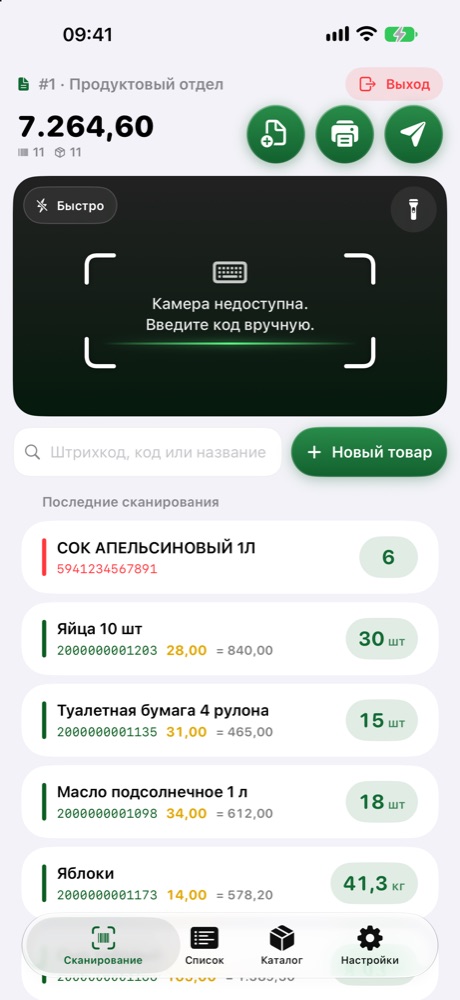
- Сканируйте товары камерой. Весовые, внутренние коды, поиск по названию — всё работает. Новые товары добавляйте кнопкой Новый товар (код, название, количество, цена).
- Нажмите Отправить: Excel в Viber, Telegram, WhatsApp, почту или в Google Drive. Или распечатайте ведомость и ценники.
Возможности
Какой нужен файл
Простая таблица: один товар в строке. Первая строка может быть заголовком. Порядок столбцов не важен — приложение узнаёт их по названию, а если нет — вы выбираете сами.
| Столбец | Распознаваемые заголовки (примеры) | |
|---|---|---|
| Наименование | Наименование, Номенклатура, Товар, Denumire, Name | обязательно* |
| Штрихкод | Штрихкод, Штрих-код, EAN, Cod de bare, Barcode | обязательно* |
| Цена | Цена, Цена продажи, Preț, Price | желательно |
| Остаток | Остаток, Количество, Кол-во, Stoc, Stock | для расхождений |
| Ед. изм. | Ед., Ед. изм., Единица, UM, Unit (шт, кг) | необязательно |
| Внутренний код | Код, Артикул, Cod intern, SKU | необязательно |
| PLU | PLU, Код весов | для весов |
* Нужен хотя бы один: наименование или штрихкод.
Форматы: Excel .xlsx, .csv (разделитель ; , или Tab), .txt. Старые .xls — пересохраните в Excel как .xlsx (Файл › Сохранить как).
Цены: 12,50 или 12.50. Несколько штрихкодов у одного товара: отдельные строки с тем же кодом, или в одной ячейке через запятую. Кодировка Windows-1251 из 1С тоже читается.
Примеры файлов
Скачайте, откройте в Excel и замените своими товарами — или загрузите прямо в приложение, чтобы попробовать.
Копирование
Выделите столбцы в Excel или Google Таблицах, скопируйте, затем в приложении: Каталог › Вставить текст. Выглядит так:
Штрихкод	Наименование	Цена	Остаток
4840000000017	Минеральная вода 0,5 л	6,50	48
4840000000024	Молоко 2,5% 1 л	19,90	24
Из вашей программы
1С
Откройте справочник номенклатуры или отчёт «Остатки товаров», затем Файл › Сохранить как › Excel (.xlsx). Оставьте столбцы: наименование, штрихкод, цена, количество.
Excel
Оставьте на первом листе только таблицу товаров (без строк над заголовком) и сохраните как .xlsx.
Google Таблицы
Файл › Скачать › Microsoft Excel (.xlsx). Или проще: в приложении Google Drive на телефоне файл виден прямо из Inventar & Prețuri Terminal › Каталог › Из файла.
Касса / другая программа
Подойдёт любая выгрузка в Excel или CSV с наименованием и штрихкодом.
Результат
Кнопка Отправить создаёт файл Excel с двумя листами:
1. Сканирования — Штрих-код · Кол-во · Ед. · Наименование · Время · Цена · Сумма, внизу ИТОГО.
2. Итог — по каждому товару: посчитано, остаток в программе, разница и суммы.
Google Drive: установите приложение Google Drive на iPhone и войдите в аккаунт. Затем Отправить › Excel: Google Drive / Файлы и выберите папку.
Полная инвентаризация: включите переключатель на вкладке «Список» — в файл попадут и несосканированные товары (недостача).
Цена
2 недели бесплатно, все функции. Затем 99,99 $ в год, оплата через Apple. Отмените в первые 2 недели — ничего не платите. Отмена: iPhone › Настройки › ваше имя › Подписки › Inventar & Prețuri Terminal.
Вопросы
Нужен интернет?
Нет. Каталог и сканирования хранятся на телефоне. Интернет нужен только чтобы отправить файл.
Сколько товаров может быть в каталоге?
Проверено на 80 000 позиций — загружается за несколько секунд.
Можно сканировать без каталога?
Да. Неизвестные коды показываются красным, вы один раз вводите название (и цену) — в следующий раз код узнаётся.
Где мои данные?
Только на вашем iPhone. У нас нет сервера, мы ничего не получаем. См. конфиденциальность.
Контакты
Пишите: ghenapg@gmail.com
Store inventory, right on your iPhone
Load the product list from your software, scan with the camera and send the result to Excel, Google Drive or the printer. Works offline.
2 weeks free with every feature. Then $99.99 per year. Cancel anytime.
How it works
- Export your catalog from your software (ERP, Excel, POS…) as an Excel
.xlsxor.csvfile. - Put the file on the phone: in Google Drive or iCloud Drive, or send it to yourself by WhatsApp / Telegram / e-mail and save it to Files.
- In the app: Catalog › From a file and pick the file. Columns are detected automatically. Or Paste text straight from Excel.
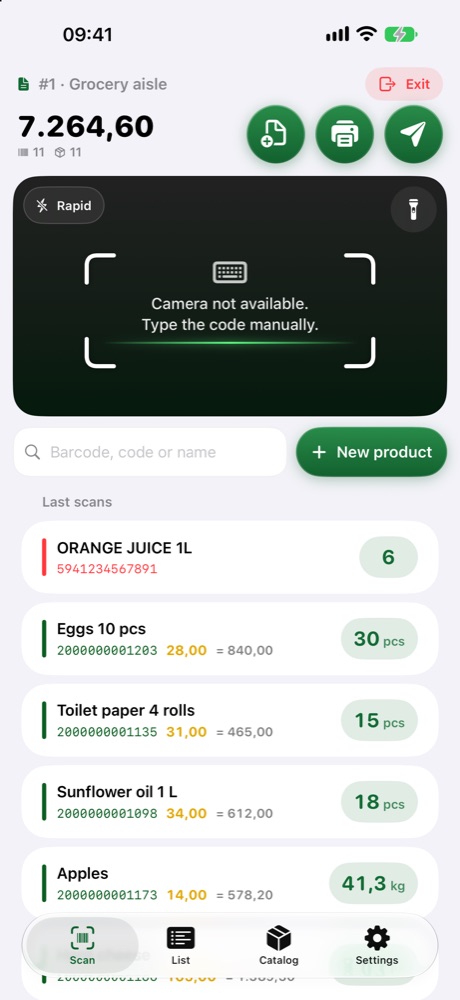
- Scan products with the camera. Scale labels, internal codes, search by name — all supported. Add new products with New product (code, name, quantity, price).
- Tap Send: Excel by WhatsApp, Telegram, e-mail or to Google Drive. Or print the list and price tags.
Features
What file you need
A simple table: one item per row. The first row can be a header. Column order doesn’t matter — the app recognises them by title, or you pick them from a list.
| Column | Recognised headers (examples) | |
|---|---|---|
| Name | Name, Product, Item, Description, Denumire, Наименование | required* |
| Barcode | Barcode, EAN, GTIN, UPC, Cod de bare, Штрихкод | required* |
| Price | Price, Retail price, Preț, Цена, Prix | recommended |
| Stock | Stock, Qty, Quantity, On hand, Stoc, Остаток | for differences |
| Unit | Unit, UOM, UM, Ед. (pcs, kg) | optional |
| Item code | Item code, SKU, ID, Code, Артикул | optional |
| PLU | PLU, Scale code | for scales |
* At least one of them: name or barcode.
Formats: Excel .xlsx, .csv (separator ; , or Tab), .txt. Old .xls files — save them from Excel as .xlsx (File › Save As).
Prices: 12.50 or 12,50. Several barcodes for one item: separate rows with the same item code, or in one cell separated by commas.
Sample files
Download, open in Excel and replace with your products — or load them straight into the app to try it.
Copy-paste
Select the columns in Excel or Google Sheets, copy, then in the app: Catalog › Paste text. It looks like this:
Barcode	Name	Price	Stock
4840000000017	Mineral water 0.5 L	6.50	48
4840000000024	Milk 2.5% 1 L	19.90	24
From your software
Excel
Keep only the product table on the first sheet (no title rows above the header), then save as .xlsx.
Google Sheets
File › Download › Microsoft Excel (.xlsx). Or simply: with the Google Drive app on the phone, the file is visible from Inventar & Prețuri Terminal › Catalog › From a file.
POS / ERP / other
Any Excel or CSV export with name and barcode will do.
The result
The Send button makes an Excel file with two sheets:
1. Scans — Barcode · Qty · Unit · Name · Time · Price · Value, with TOTAL at the bottom.
2. Result — per item: counted, stock on record, difference and values.
Google Drive: install the Google Drive app on the iPhone and sign in. Then Send › Excel: Google Drive / Files and pick the folder.
Full inventory: turn on the switch in the List tab to also include items that were not scanned (missing).
Price
2 weeks free with every feature. Then $99.99 per year, paid through Apple. Cancel within the first 2 weeks and you pay nothing. To cancel: iPhone › Settings › your name › Subscriptions › Inventar & Prețuri Terminal.
Questions
Do I need internet?
No. The catalog and scans stay on the phone. Internet is only needed to send the file.
How big can the catalog be?
Tested with 80,000 items — it loads in a few seconds.
Can I scan without a catalog?
Yes. Unknown codes show in red; type the name (and price) once and the code is recognised next time.
Where is my data?
Only on your iPhone. We have no server and receive nothing. See the privacy policy.
Contact
Write to us: ghenapg@gmail.com
L’inventaire du magasin, directement sur iPhone
Chargez la liste des produits de votre logiciel, scannez avec la caméra et envoyez le résultat vers Excel, Google Drive ou l’imprimante. Fonctionne hors ligne.
2 semaines gratuites avec toutes les fonctions. Puis 99,99 $ par an. Annulable à tout moment.
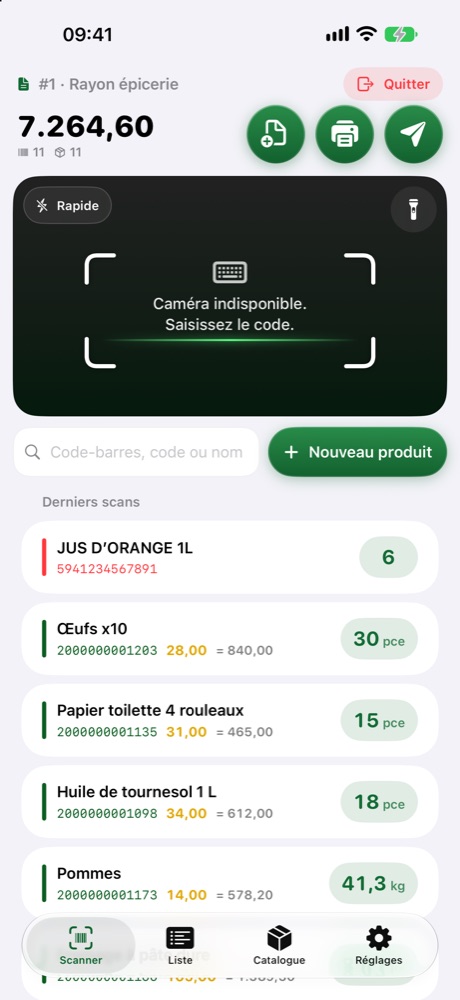
Comment ça marche
- Exportez votre catalogue depuis votre logiciel (ERP, Excel, caisse…) en fichier Excel
.xlsxou.csv. - Mettez le fichier sur le téléphone : dans Google Drive ou iCloud Drive, ou envoyez-le-vous par WhatsApp / Telegram / e-mail et enregistrez-le dans Fichiers.
- Dans l’app : Catalogue › Depuis un fichier et choisissez le fichier. Les colonnes sont reconnues automatiquement. Ou Coller du texte directement depuis Excel.
- Scannez les produits avec la caméra. Étiquettes de balance, codes internes, recherche par nom — tout fonctionne. Ajoutez de nouveaux produits avec Nouveau produit (code, nom, quantité, prix).
- Touchez Envoyer : Excel par WhatsApp, Telegram, e-mail ou vers Google Drive. Ou imprimez la liste et les étiquettes de prix.
Fonctions
Quel fichier faut-il
Un tableau simple : un article par ligne. La première ligne peut être l’en-tête. L’ordre des colonnes n’a pas d’importance — l’app les reconnaît par leur titre, sinon vous les choisissez dans une liste.
| Colonne | En-têtes reconnus (exemples) | |
|---|---|---|
| Désignation | Désignation, Libellé, Produit, Article, Nom, Name | obligatoire* |
| Code-barres | Code-barres, Code EAN, EAN, GTIN, Barcode | obligatoire* |
| Prix | Prix, Prix de vente, PU, Price | conseillé |
| Stock | Stock, Quantité, Stock théorique, Qty | pour les écarts |
| Unité | Unité, Unit, UM (pce, kg) | facultatif |
| Code article | Code article, Référence, Réf, SKU | facultatif |
| PLU | PLU, Code balance | pour la balance |
* Au moins l’une des deux : désignation ou code-barres.
Formats : Excel .xlsx, .csv (séparateur ; , ou Tab), .txt. Les anciens .xls — enregistrez-les depuis Excel en .xlsx (Fichier › Enregistrer sous).
Prix : 12,50 ou 12.50. Plusieurs codes-barres pour un article : lignes séparées avec le même code article, ou dans une cellule séparés par des virgules.
Fichiers d’exemple
Téléchargez, ouvrez dans Excel et remplacez par vos produits — ou chargez-les directement dans l’app pour essayer.
Copier-coller
Sélectionnez les colonnes dans Excel ou Google Sheets, copiez, puis dans l’app : Catalogue › Coller du texte. Cela ressemble à ceci :
Code-barres	Désignation	Prix	Stock
4840000000017	Eau minérale 0,5 L	6,50	48
4840000000024	Lait 2,5 % 1 L	19,90	24
Depuis votre logiciel
Excel
Gardez seulement le tableau des produits sur la première feuille (sans lignes de titre au-dessus de l’en-tête), puis enregistrez en .xlsx.
Google Sheets
Fichier › Télécharger › Microsoft Excel (.xlsx). Ou plus simple : avec l’app Google Drive sur le téléphone, le fichier est visible depuis Inventar & Prețuri Terminal › Catalogue › Depuis un fichier.
Caisse / ERP / autre
Tout export Excel ou CSV avec désignation et code-barres convient.
Le résultat
Le bouton Envoyer crée un fichier Excel à deux feuilles :
1. Scans — Code-barres · Qté · Unité · Désignation · Heure · Prix · Valeur, avec TOTAL en bas.
2. Résultat — par article : compté, stock théorique, écart et valeurs.
Google Drive : installez l’app Google Drive sur l’iPhone et connectez-vous. Puis Envoyer › Excel : Google Drive / Fichiers et choisissez le dossier.
Inventaire complet : activez l’interrupteur dans l’onglet Liste pour inclure aussi les articles non scannés (manquants).
Prix
2 semaines gratuites avec toutes les fonctions. Puis 99,99 $ par an, payé via Apple. Annulez pendant les 2 premières semaines et vous ne payez rien. Pour annuler : iPhone › Réglages › votre nom › Abonnements › Inventar & Prețuri Terminal.
Questions
Faut-il internet ?
Non. Le catalogue et les scans restent sur le téléphone. Internet sert seulement à envoyer le fichier.
Quelle taille de catalogue ?
Testé avec 80 000 articles — chargé en quelques secondes.
Puis-je scanner sans catalogue ?
Oui. Les codes inconnus s’affichent en rouge ; saisissez le nom (et le prix) une fois et le code sera reconnu la fois suivante.
Où sont mes données ?
Uniquement sur votre iPhone. Pas de serveur, nous ne recevons rien. Voir la politique de confidentialité.
Contact
Écrivez-nous : ghenapg@gmail.com